
1. Physical Setup
Before using the TentApp, you must physically connect the sensor to your computer.
-
Connect the M12 connector of the Olpas Configuration Cable to your sensor.
-
Plug the USB end of the cable into an available USB port on your computer.
-
Ensure your computer is powered on (the USB port must provide enough power to wake the sensor).
2. Starting the Connection
-
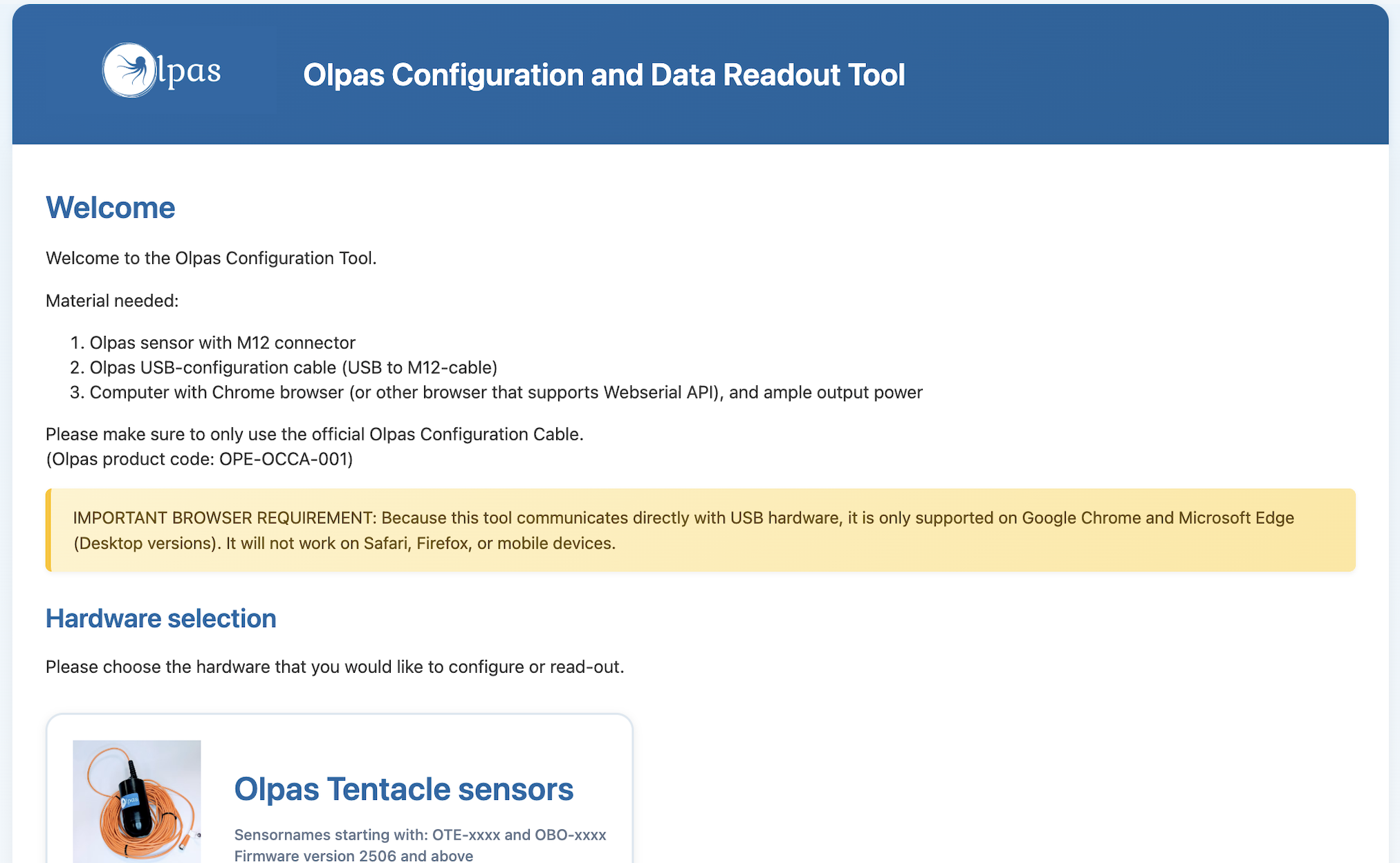
Open the Olpas TentApp in Google Chrome or Microsoft Edge. You can use the public online version at https://dashboard.olpas.tech/tool.html or a local downloaded version if no public internet is available.
-
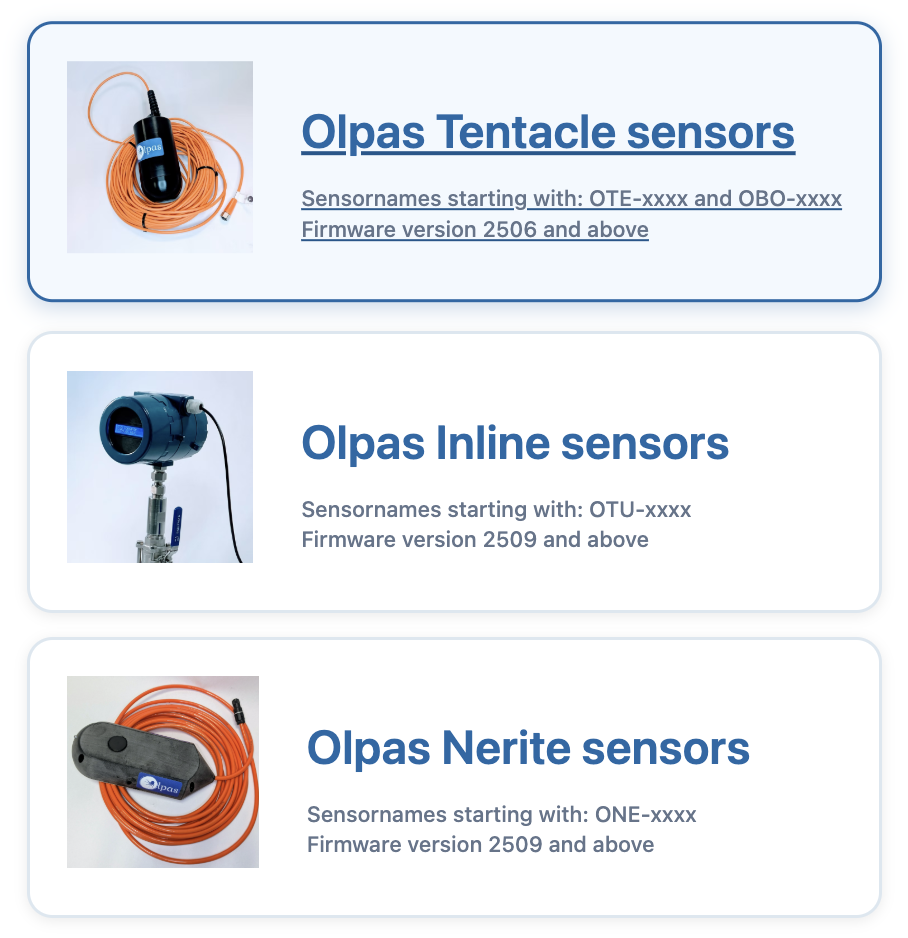
On the Welcome screen, click on the Sensor Model you are trying to connect (e.g., Tentacle, Inline or Nerite).
-
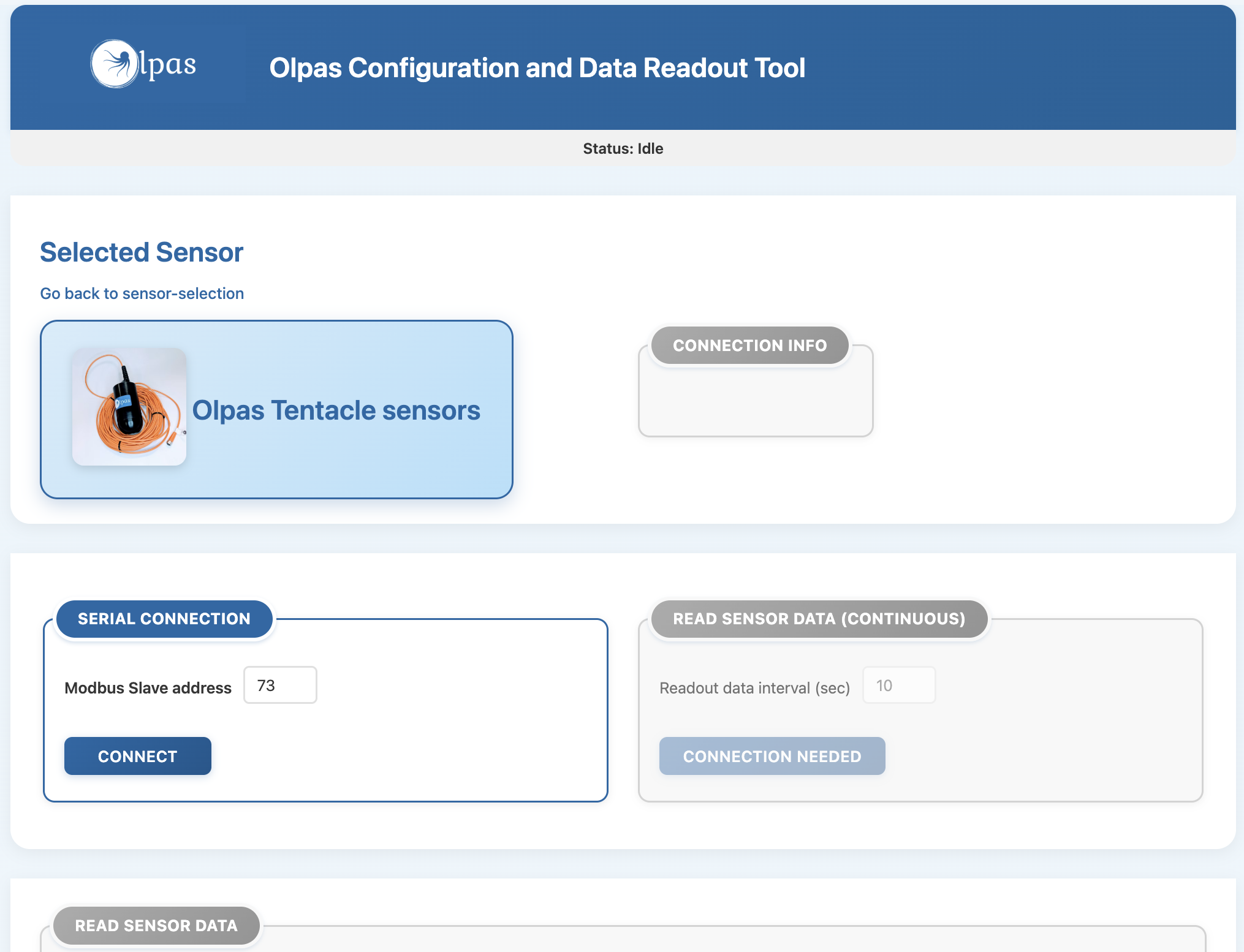
The main dashboard will load. Locate the Serial Connection box at the top of the page.
-
Click the Connect button.
3. Selecting the USB Port
Because the TentApp runs in your browser, it needs your permission to access the USB cable.
-
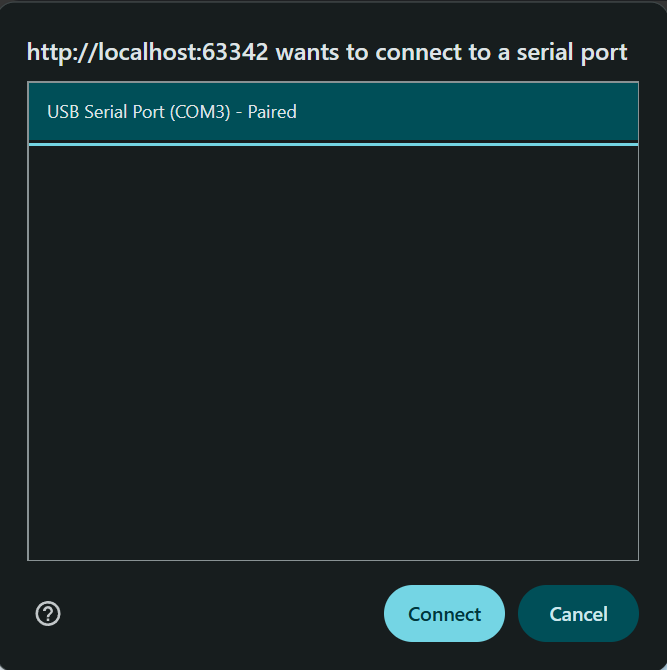
After clicking "Connect", a small browser pop-up window will appear near the top-left of your screen.
-
Look for a device named "USB Serial Port", or "COM[Number]".
-
Click on the device name to highlight it, then click the Connect button inside the pop-up.
4. Understanding the Status Bar
At the top of the dashboard, there is a colored Status Bar that tells you exactly what the sensor is doing. Watch this bar during the connection process:
-
⬜ Idle (Grey): The app is waiting for you to click connect.

-
🟨 Connecting (Yellow): The app is opening the USB port and asking the sensor for its initial configuration.

-
🟩 Sensor Ready (Green): The connection was successful! The app is now actively reading live data.

-
🟥 Error (Red): The connection failed. (See the Troubleshooting section below).

5. Connection Troubleshooting
If the app fails to connect, try the following steps:
-
Browser Error: Ensure you are not using Firefox or Safari. You must use a browser that supports WebSerial (Chrome/Edge/Opera) and the browser might have the necessary permissions to access your USB port.
-
Port in Use: Check if another application is already using the COM port. Close the other app and try again.
-
Loose Cable: Unplug the USB cable, wait 5 seconds, plug it back in, and hard-refresh the webpage.