1. Exporting Settings (Creating a Backup)
After configuration of your sensor, the sensor-settings can be exported for future use, or to be uploaded in another appropriate Olpas sensor. In order to do this, first export the configuration data to the connected computer.
-
Click "Export Settings" at the bottom of the User Settings section.
-
The app will generate and download a file named
sensor_settings_[Date].json. -
Keep this file in a safe place. It is highly recommended to export your settings before making any major changes, or if you need to send your configuration to Olpas Support for troubleshooting.
2. Importing Settings (Restoring or Cloning)
You can use a previously saved .json file to restore a sensor's configuration, or to quickly "clone" the exact same settings onto a brand new sensor of the same sensor type.
-
Click the "Import Settings" button.
-
Select the
.jsonfile from your computer. -
The app will load the numbers into the input boxes. Note: The boxes will turn 🟡 Yellow.
Important: Importing a file does not automatically change the sensor. You must still review the yellow boxes and click the "Write to Sensor" button to finalize the upload.
3. Clear Stored Data (Warning)
Next to the Import/Export buttons is a button labeled "Clear Stored Data".
-
What it does: This clears the TentApp's temporary browser memory of your sensor's configuration.
-
When to use it: Only use this if the app interface seems completely frozen or out-of-sync with the sensor, or if directed by Olpas Support.
Clicking this will reset the values on your screen to defaults or zeros. If you click "Write to Sensor" immediately after clearing the data, you will wipe out your sensor's actual configuration. Always refresh the page or reconnect to read the true data back from the sensor after using this button.
4. Running the App Offline
The TentApp is designed to work perfectly in the field, even if you do not have an internet connection or cellular service.
-
Scroll to the very bottom footer of the page and click "Download offline version".
-
This will save the entire application as a single
.htmlfile to your laptop. You can simply double-click this file anywhere in the world at anytime to open the app and connect to your sensors.

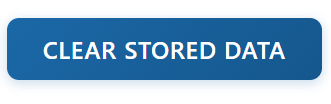
Many browsers also support a “save as…”-function which allows saving the complete page as one html site.